Download Screen Recording Tools – HD Screen Capture Software for Windows, Mac, Android & iOS
Overview
Screen Recording Tools is a high‑definition screen capture solution designed for both personal creators and professional teams. Whether you need to record a full‑screen gameplay session, a focused tutorial window, or a live webinar, this application delivers crisp, lossless video in just a few clicks. The interface is intentionally streamlined, offering a clean toolbar that sits unobtrusively at the edge of your desktop while still providing deep customization for power users.
From selecting the exact recording resolution down to choosing the audio input—system sound, external microphone, or a blended mix—Screen Recording Tools gives you the flexibility to match any production requirement. The tool also includes handy extras such as instant snapshot capture, on‑the‑fly annotation, and the ability to embed webcam footage alongside your screen content. Because the software is built on a lightweight engine, you won’t experience the lag or CPU spikes that plague many competing bundles like Capture Fox or ScreenFlow.
Whether you’re a teacher preparing a classroom demonstration, an IT specialist troubleshooting a network glitch, or a marketer crafting a product showcase, this utility provides a reliable, secure, and free‑to‑start platform that grows with your needs. No watermarks, no hidden fees, and unlimited recording length mean you can focus on creativity rather than technical constraints.
Key Features
- HD‑Quality Capture – Record in 1080p, 4K, or custom resolutions with lossless bitrate control.
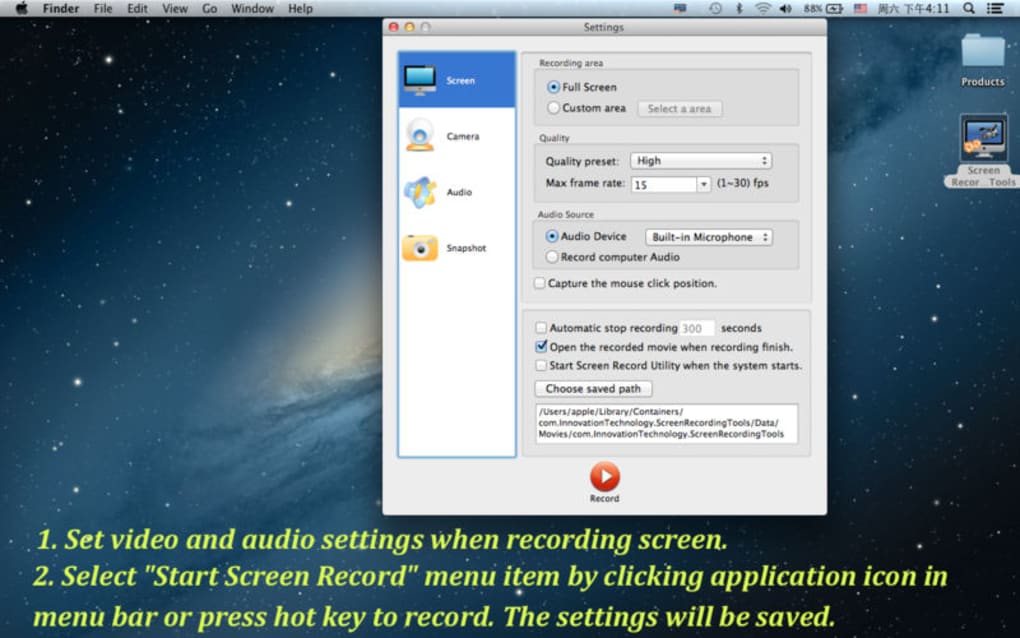
- Full‑Screen or Region Selection – Choose to capture the entire display or define a precise rectangle for focused tutorials.
- Multiple Audio Sources – Simultaneously record system audio, microphone input, or a mixed audio track.
- Webcam Overlay – Add a live video feed from any connected camera to personalize your recordings.
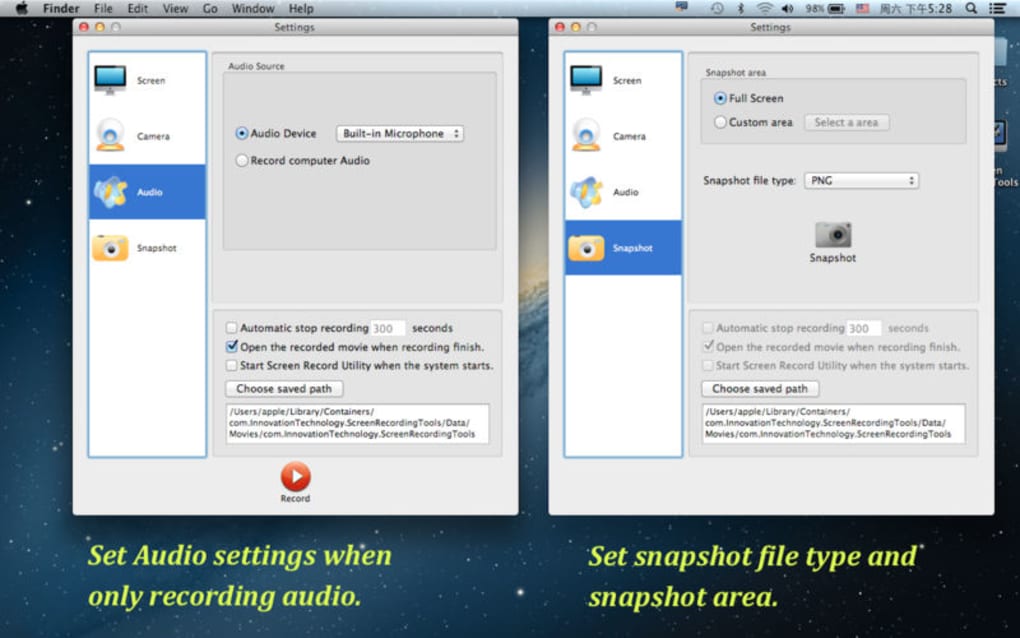
- Instant Snapshot – Capture a still image of the current frame with a single keystroke.
- Scheduled Recording – Set start and stop times for automated captures, ideal for webinars or timed demos.
- Online Media Capture – Directly record streaming content from platforms like YouTube without third‑party plugins.
- Unlimited File Length – No artificial caps on duration; files are only limited by available storage.
- Export Flexibility – Save recordings as MP4, MOV, or GIF, and choose from a variety of codecs.
- Cross‑Platform Support – Native installers for Windows, macOS, Android, and iOS ensure you can capture from virtually any device.
Installation & Usage Guide
Getting started with Screen Recording Tools is intentionally simple, allowing users of any skill level to begin capturing within minutes. First, visit the official website and click the Download button that matches your operating system—Windows, macOS, Android, or iOS. The installer is signed with a recognized certificate, guaranteeing a secure download free from malware. After the download completes, run the installer and follow the on‑screen prompts: accept the license agreement, choose an installation folder (the default works for most users), and click Install. Once installed, launch the application; a compact toolbar appears at the top of your screen, offering immediate access to the primary controls.
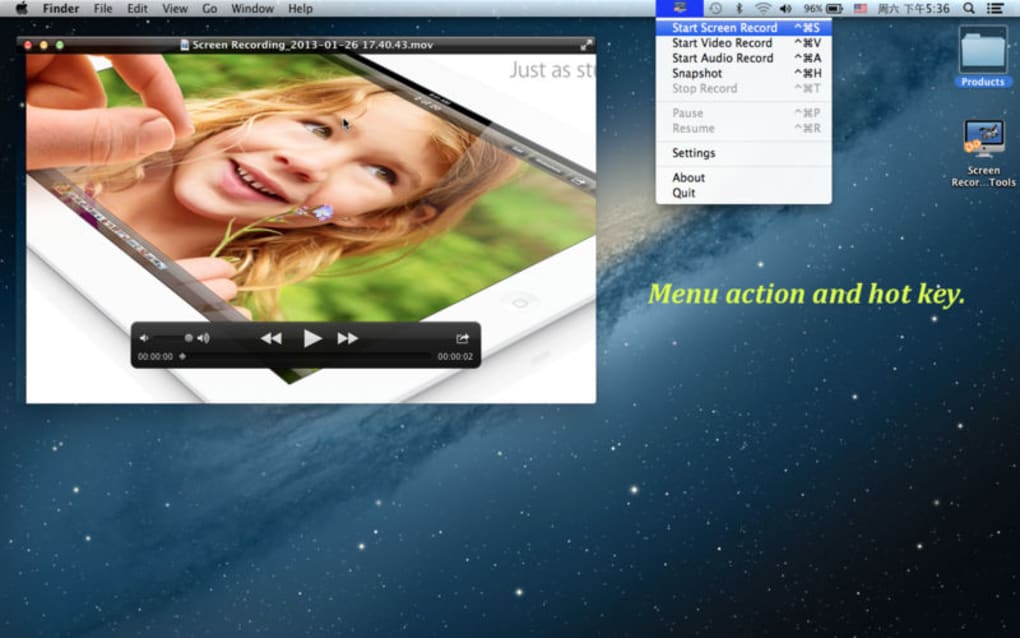
To begin a recording, click the Record icon. A pop‑up window will let you select Full Screen, Window, or Custom Region. For tutorials, the custom region option is often preferred because it reduces post‑production editing time.
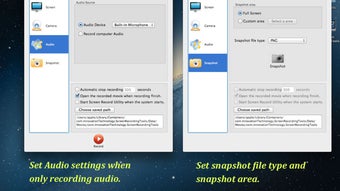
Next, choose your audio source from the dropdown menu—system audio, microphone, or both. If you need to include a webcam feed, enable the Webcam Overlay toggle and position the preview window anywhere on the screen. The Settings gear icon opens advanced options such as frame rate, bitrate, and output format; the defaults are optimized for most use‑cases, but you can fine‑tune them for high‑action gaming or low‑bandwidth environments.
When you’re ready, press the Start button. A subtle countdown gives you a moment to switch to the content you wish to capture. While recording, a small floating widget displays elapsed time and provides quick pause, resume, or stop controls.
After you stop the session, the software automatically opens a preview window where you can trim the beginning or end, add basic annotations, and select the final export location. The finished file is saved to your chosen directory and can be shared directly to cloud services or uploaded to video platforms. Updates are delivered via an integrated updater that checks for the latest version each time you launch the app, ensuring you always have the newest features and security patches without manual effort.
Compatibility, Pros & Cons
Screen Recording Tools runs natively on the most recent desktop and mobile operating systems: Windows 10/11, macOS 10.15 (Catalina) and later, Android 8.0 (Oreo) and above, and iOS 13+ (iPadOS included). The application also supports ARM‑based devices, meaning you can capture on both Intel/AMD PCs and Apple Silicon Macs without performance loss. System requirements are modest—at least 2 GB RAM, 200 MB of free disk space, and a graphics card supporting OpenGL 3.2 or higher. For users with older hardware, the software automatically lowers the recording bitrate to maintain smooth playback, though for best results we recommend a quad‑core CPU and a dedicated GPU for 4K captures.
Pros
- Ultra‑high‑definition recording with no watermark.
- Unlimited recording length—perfect for long webinars or training sessions.
- Flexible audio routing; capture system sound, mic, or both simultaneously.
- Built‑in webcam overlay and on‑screen annotation tools.
- Cross‑platform availability ensures you can capture from any device.
- Lightweight engine that minimizes CPU and memory usage.
- Free core version with optional paid add‑ons for advanced editing.
- Secure, signed installers and automatic updates keep the software safe.
- Extensive export options (MP4, MOV, GIF) for seamless publishing.
- Responsive customer support and an active community forum.
Cons
- The free tier limits export to MP4; other formats require a premium upgrade.
- Advanced editing (transitions, multi‑track audio) is not included in the base package.
- Some users report occasional hiccups when recording very high‑frame‑rate 4K gameplay on older GPUs.
- Mobile version lacks the full suite of annotation tools found on desktop.
- No built‑in cloud storage; you must manually upload recordings to external services.
Frequently Asked Questions
Can I record system audio and microphone simultaneously?
Yes. Screen Recording Tools includes a mixed‑audio mode that lets you capture both the computer’s internal sound (e.g., video playback, game audio) and an external microphone at the same time. You can adjust each channel’s volume independently in the audio settings before you start recording.
Is there a limit to the length or size of recordings?
No. The free version imposes no artificial time limits. The only practical restriction is the available storage on your device and the bitrate you select. Higher bitrates produce larger files, but you can lower the bitrate to extend recording time without sacrificing overall quality.
Does the software work on older operating systems like Windows 7 or macOS Sierra?
Officially, Screen Recording Tools supports Windows 10/11 and macOS 10.15 or newer. While it may launch on older versions, you might encounter missing libraries, reduced performance, or lack of security updates. For a stable experience, we recommend upgrading to a supported OS.
Can I capture video from a YouTube stream directly?
Yes. The “Online Media Capture” feature lets you specify a URL (YouTube, Vimeo, etc.) and record the playback in real time. The tool respects DRM restrictions, so it works with most publicly available streams, but protected content may not be recordable due to legal constraints.
Is there a paid version, and what does it add?
A premium subscription is available for $19.99 per year. It unlocks additional export formats (MOV, GIF), advanced editing tools (timeline trimming, transitions), priority customer support, and a cloud sync feature that automatically backs up recordings to the developer’s secure servers.
Conclusion & Call to Action
Screen Recording Tools stands out in a crowded market by delivering professional‑grade HD capture without the typical price tag or steep learning curve. Its blend of simplicity (one‑click start/stop) and depth (custom resolution, mixed audio, webcam overlay) makes it suitable for educators, IT professionals, gamers, and marketers alike. While the free tier lacks some advanced editing capabilities, the core functionality—unlimited length, watermark‑free video, and cross‑platform support—is more than enough for most everyday recording tasks. If you’re looking for a reliable, secure, and regularly updated screen recorder that scales from quick snapshots to full‑blown tutorial productions, this tool is a solid choice. Download Screen Recording Tools today, start creating high‑definition content, and enjoy the peace of mind that comes with a free, ad‑free experience backed by responsive support.







